Customer access is invitation-only. Platform operators invite customers directly and share the invitation link themselves. The installation’s public root shows only branding and a sign-in link. This guide is for platform operators; customers accepting an invitation can start with Managed ermahgerd.
Invite a customer
- Sign in to your private administrator portal and open Platform → Customers.
- Select Invite customer and enter their email address.
- Copy the private invitation URL and send it through your chosen communication channel. ermahgerd does not send an email.
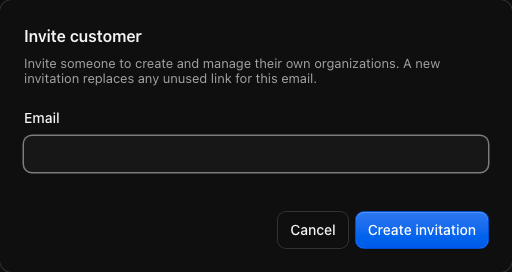
The link expires after seven days and can be used once. Customers → Invitations shows pending, accepted, expired, and revoked invitations. Reissue a link if the recipient needs a replacement; the previous unused link for that email stops working immediately. Revoke a pending invitation when access is no longer intended. Platform viewers can inspect invitation history but cannot issue or revoke links.
Accept customer access
The invitation opens the tenant console with the email fixed by the invitation. A new customer chooses a display name and password. There is no questionnaire. An existing user signs in as the invited account and accepts; existing memberships and credentials remain intact.
Acceptance opens organization creation. New organizations start on Free, and the customer can create additional organizations within the account limit. Each organization has its own resources, members, tier, and quotas.
A customer invitation grants permission to create organizations. It does not grant platform administrator access.
Manage customers
Platform → Customers lists customers after they accept an invitation. Rank accounts by age, organizations owned, Worker invocations, or object-storage use. Open a customer name to see their account information, owned organizations, and selected usage totals. The Organizations tab compares usage across organizations.
Customers own and manage their organizations. Operators provide support through the existing organization suspension, deletion, and quota-override controls.
Invite organization members
An organization owner or administrator opens Management → Team, selects Invite member, enters an email and role, and receives a private link to send.
- Existing users sign in as the invited email and accept.
- New users choose a display name and password, then join the organization.
- Membership grants only the selected organization role. It never grants permission to create organizations.
A team member can later receive a separate customer invitation from a platform operator. Accepting that invitation adds organization-creation access to their existing account.
Invitation boundaries
The identity service fixes the email on the backend, stores only hashes of invitation secrets, and consumes invitations atomically. Browser mutations require the exact console origin. Tenant and administrator sessions remain separate. The public landing process exposes no signup, invitation-acceptance, waitlist, or authenticated console API.
For deployment security, see Operator console and Certificates and domains.