The console is the primary day-to-day view of an organization. It keeps organization resources, deployment history, quotas, and operational signals in one place while Wrangler remains the deployment interface.
Sign in to the tenant console supplied for your installation. Managed customers use the console linked from Managed ermahgerd; self-hosted users use their operator’s address. Screenshots below show demonstration resources; your organization names, IDs, and hostnames will differ.
Choose an organization
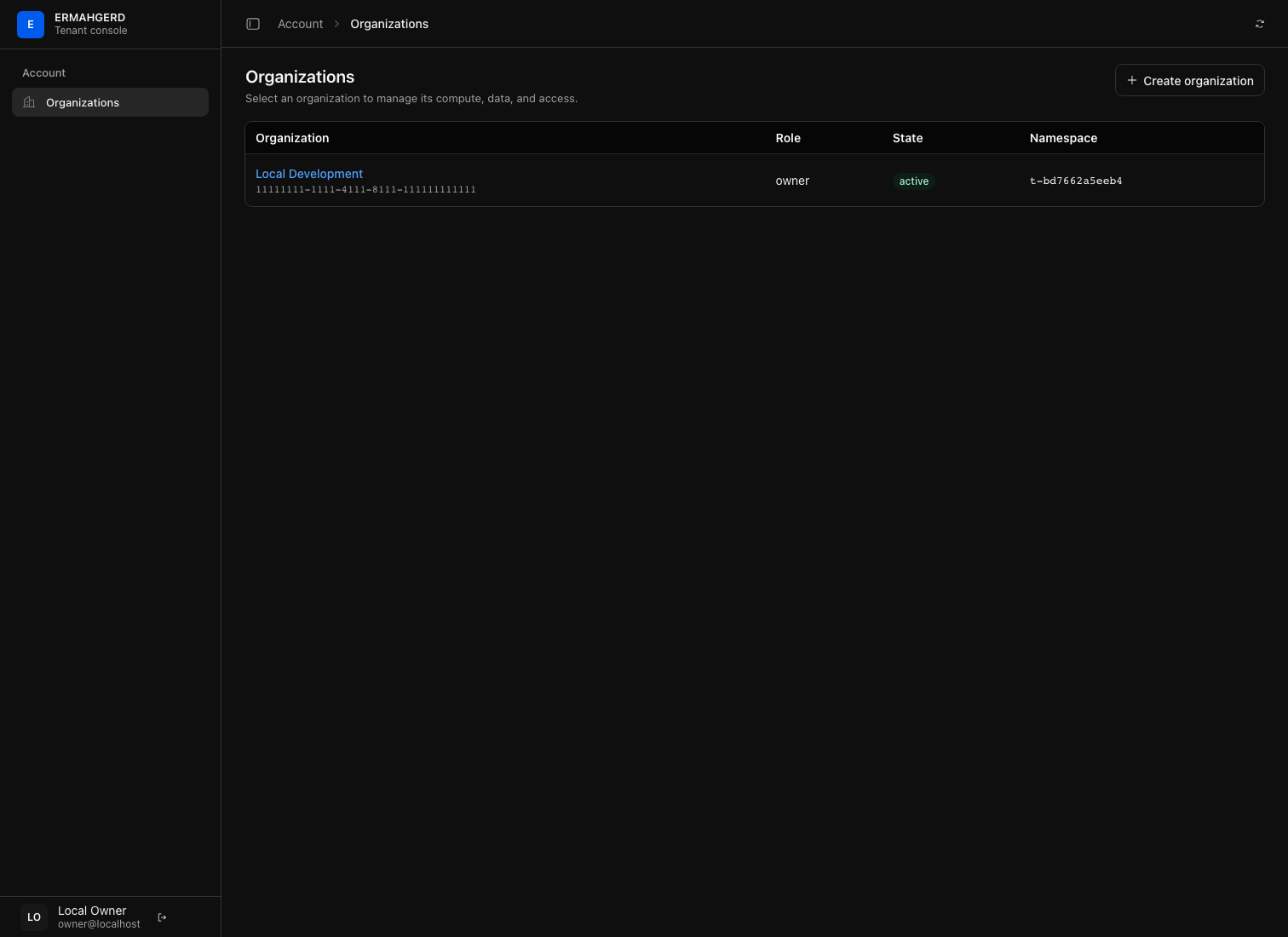
After signing in, the organization directory is the account-level home. A customer-invited account can create an organization there; an account created through a team invitation can only enter organizations it has joined. Select an organization’s linked name to enter its resource views. Until an organization is selected, the sidebar contains only account-level navigation.
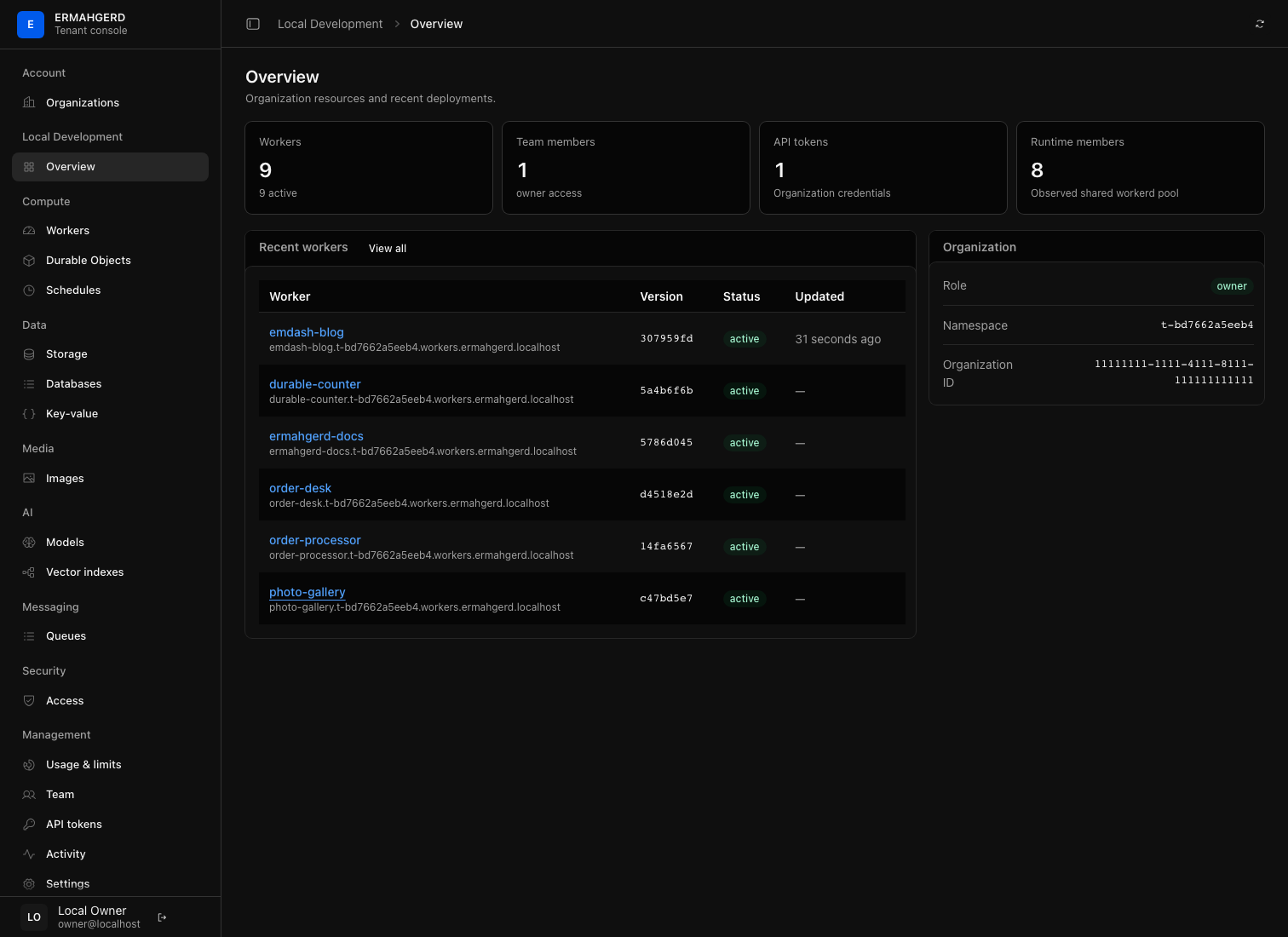
Inside an organization, the overview gives a compact inventory of Workers, members, credentials, runtime capacity, and recent deployments. Use the sidebar to move between the organization’s resources; its URL always identifies the current organization and view, so pages can be refreshed, bookmarked, and shared.
Resource tables show 25 rows by default and offer 10, 25, 50, 100, and 150-row page sizes when needed. Page number and page size remain in the URL alongside the view’s other filters, so reloading or sharing a long inventory returns to the same place.
The navigation follows the platform model: Compute, Data, Media, AI,
Messaging, Security, and Management group related tenant resources.
AI contains provider connections and vector indexes; it is where an
organization brings its own provider account before a Worker uses env.AI.
Security →
Access manages protected Worker hostnames, reusable groups, application
policies, scoped service credentials, and access events. Platform administration has a separate portal and account permission.
Inspect a Worker before or after a deployment
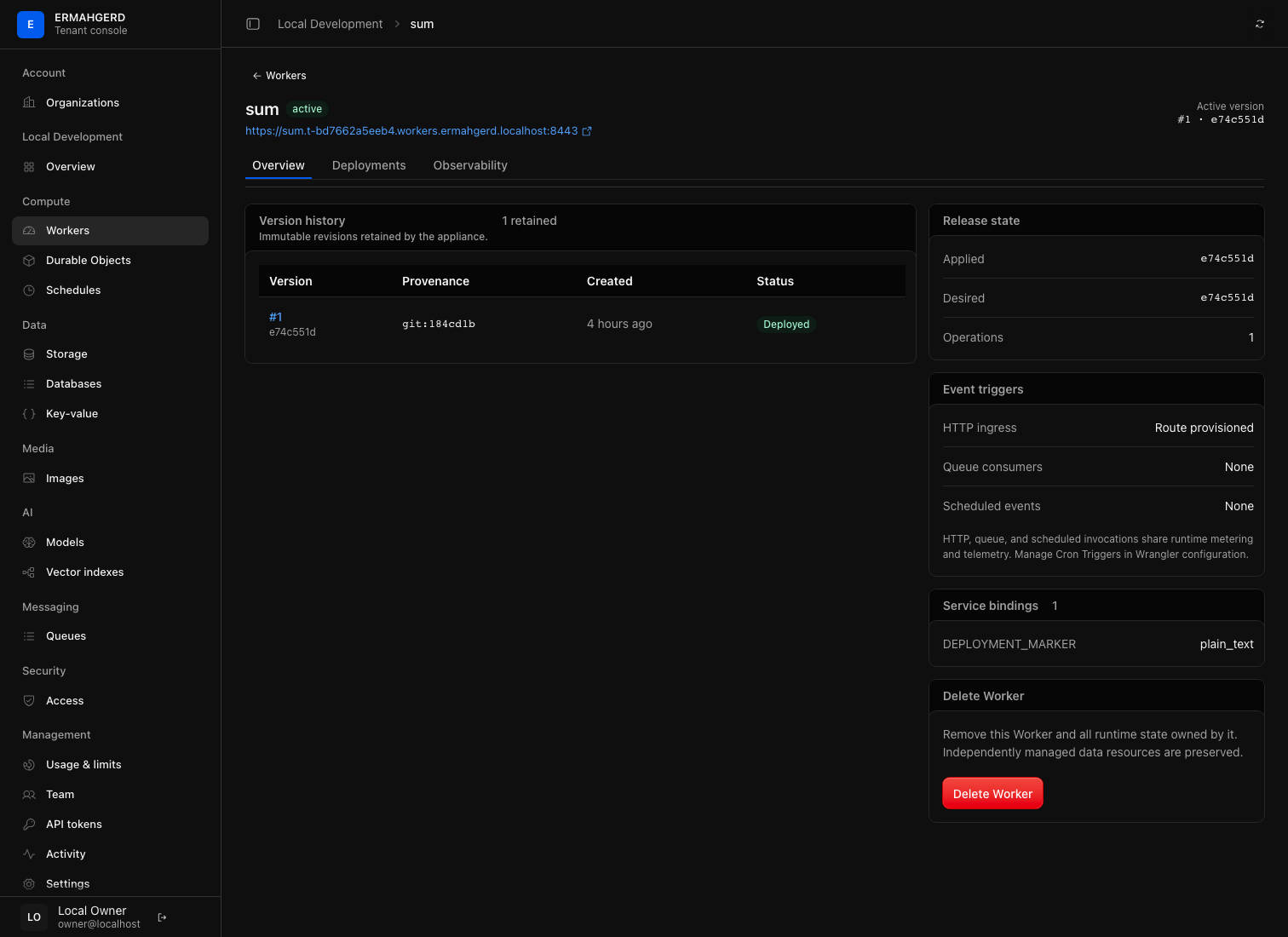
Select a Worker to see its active version and revision history. Use the Deployments tab for one revision’s deployment metadata and the Observability tab for traffic, latency, and recent application events. The console does not deploy source code: deploy with Wrangler, then use this view to inspect the result or roll back to a prior revision.
The Domains tab manages exact custom hostnames. Add a hostname, copy its ownership and traffic records into your DNS provider, then select Check DNS. The page separates DNS checks from automatic HTTPS setup, retains the selected hostname in the URL, and includes bounded activity and explicit removal. See Custom domains.
Security manages opt-in ingress protection independently of deployments. Use its Policy, Decisions, and Changes tabs to observe traffic, tune scoped rule exceptions, and enable enforcement. See Worker ingress protection for the preview’s inspection and availability boundaries.
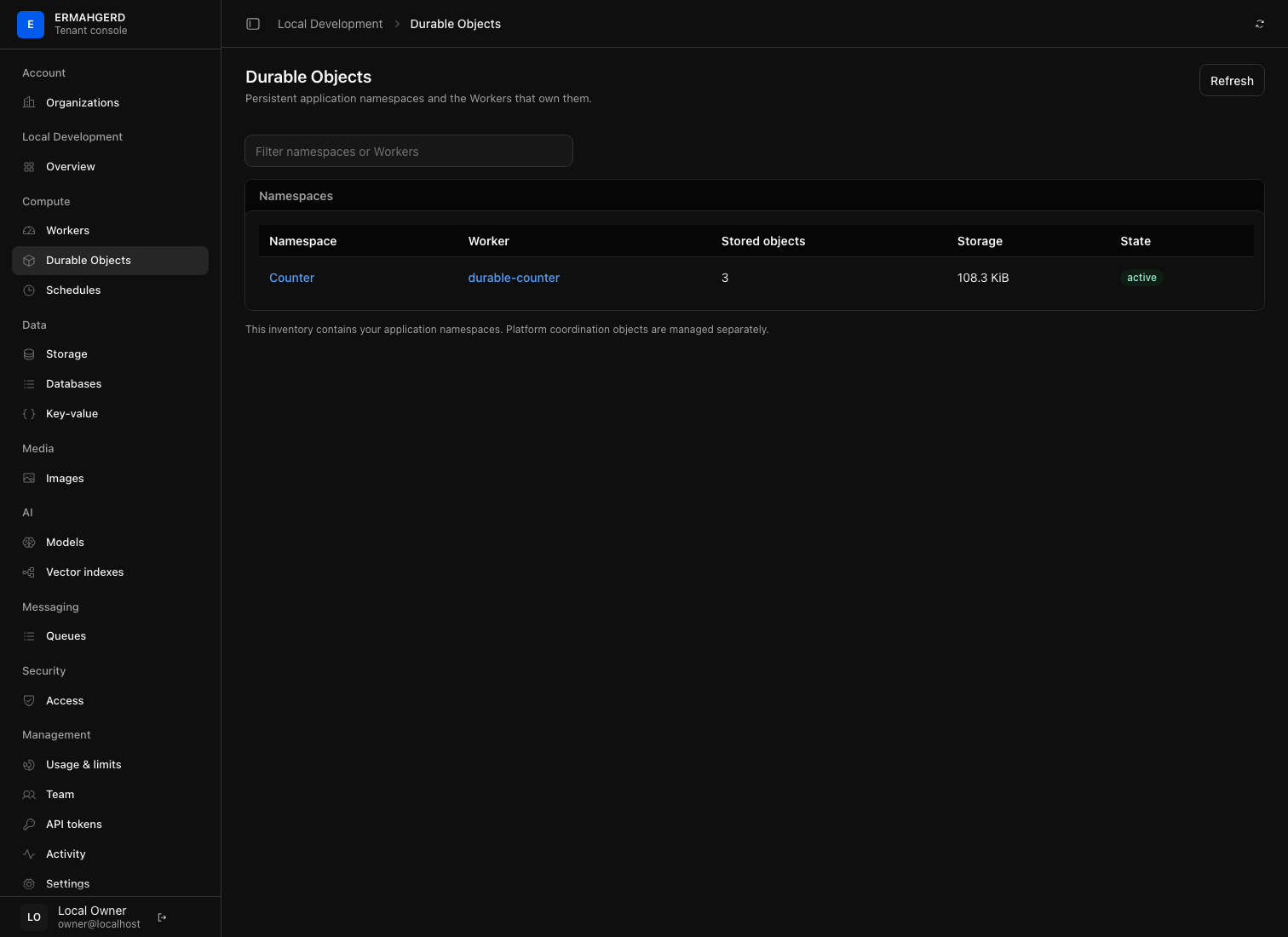
Workers with native Durable Object bindings also expose a Durable Objects tab. It shows the stable shared-pool placement, Wrangler migration tag, namespace identities, observed native storage, and bounded lifecycle history. For the organization-wide view, open Compute → Durable Objects. Namespace names link to a focused detail with storage, ownership, migration, and lifecycle pages. Stored object counts describe persisted databases, not running instances.
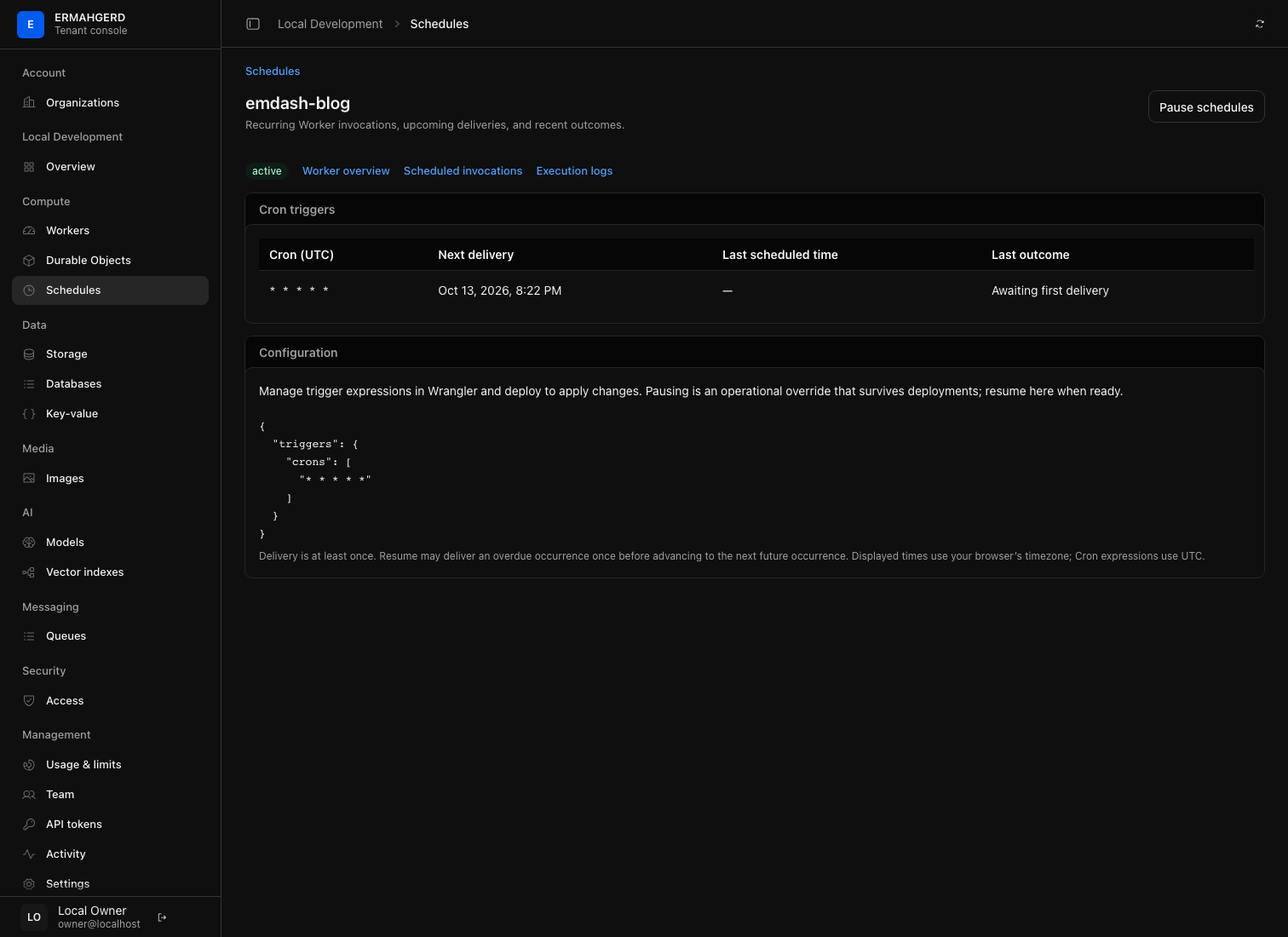
The Worker overview also lists its event triggers. HTTP ingress and configured queue consumers are explicit, and background activity is visible in the Observability tab as invocation rate and outcome. Queue consumers also receive queue-service handler duration percentiles. Shared-pool CPU and memory are shown as capacity context, not fictional per-Worker allocation. Configured Cron Triggers link to Compute → Schedules. This page lists scheduled Workers, next deliveries, and current state. Open a Worker to inspect each Cron expression and its last outcome, pause or resume delivery, or continue into scheduled invocation telemetry and logs. An operational pause survives deployments; expressions are still managed in Wrangler. See Schedules.
Work with data and AI
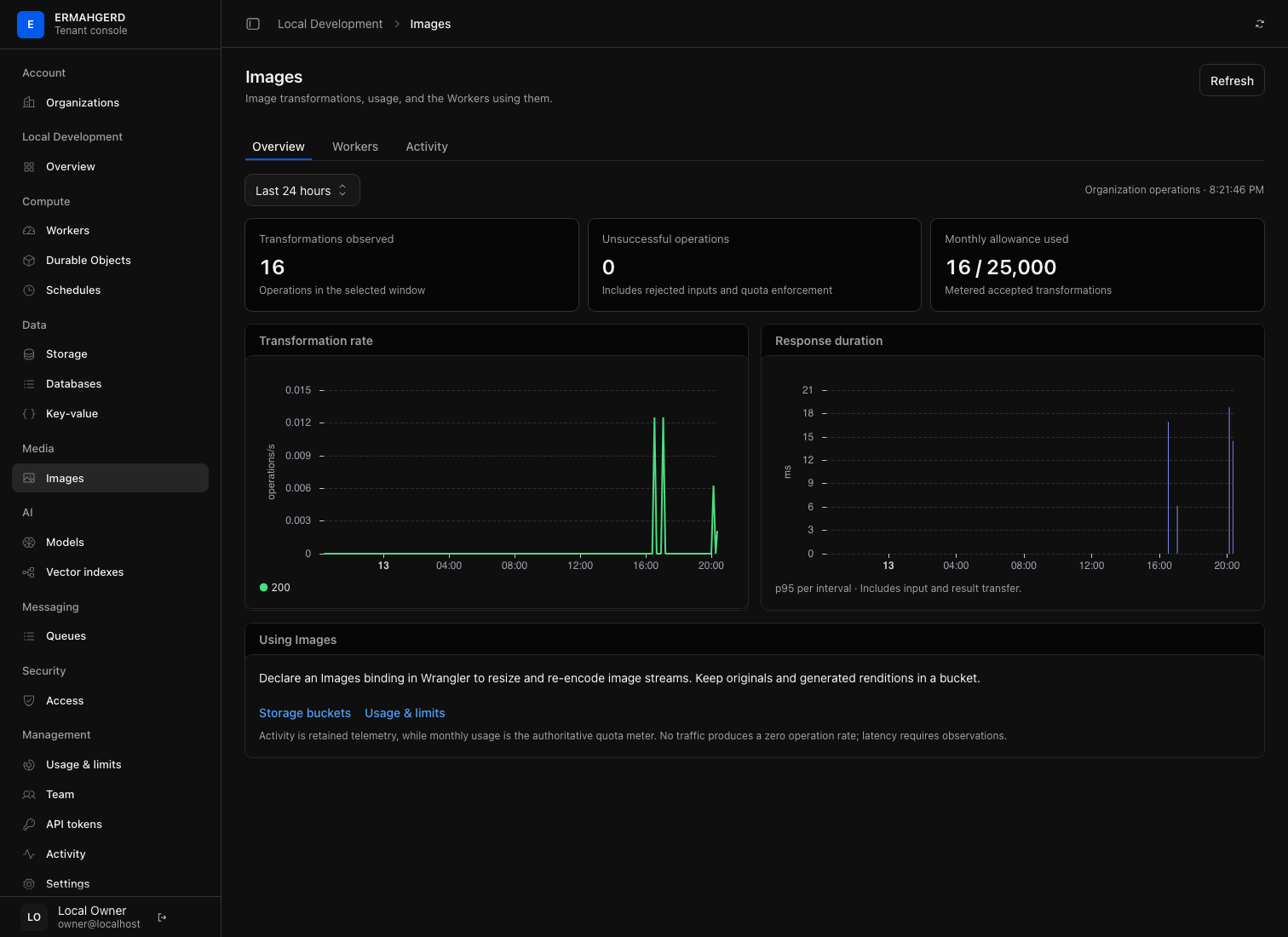
Media → Images separates transformation usage, bound Workers, and recent activity into focused tabs. Time range and table selections stay in the URL. The monthly allowance comes from quota metering; charts and recent operations come from organization-scoped telemetry and can have a shorter retention window. Images does not store photos: browse originals and renditions in Storage.
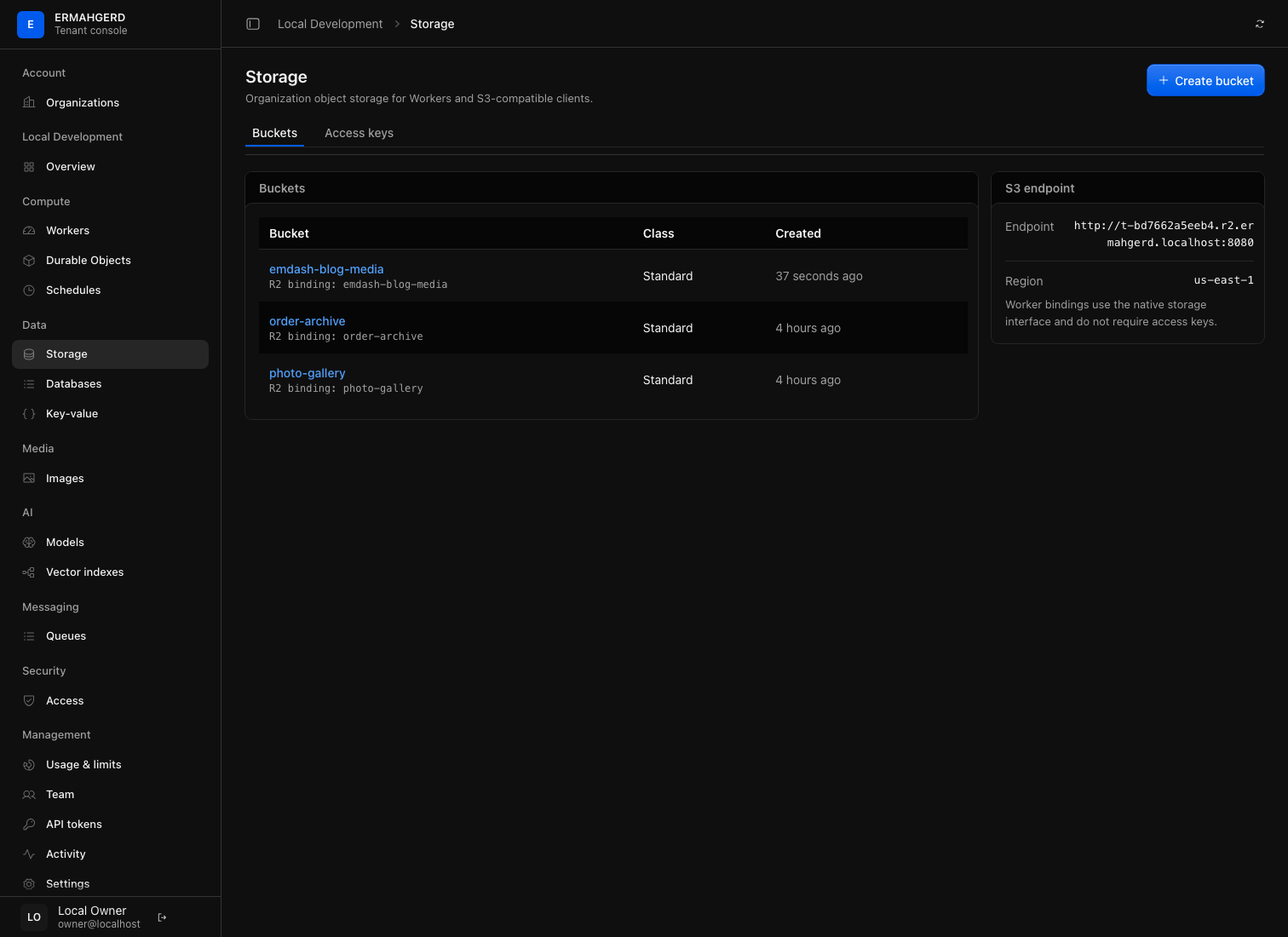
Storage presents buckets as navigable object browsers. Prefixes behave as folders, object details expose metadata and version information, and destructive operations require explicit confirmation. The same bucket can be used by an S3-compatible client or bound to a Worker as R2-style storage.
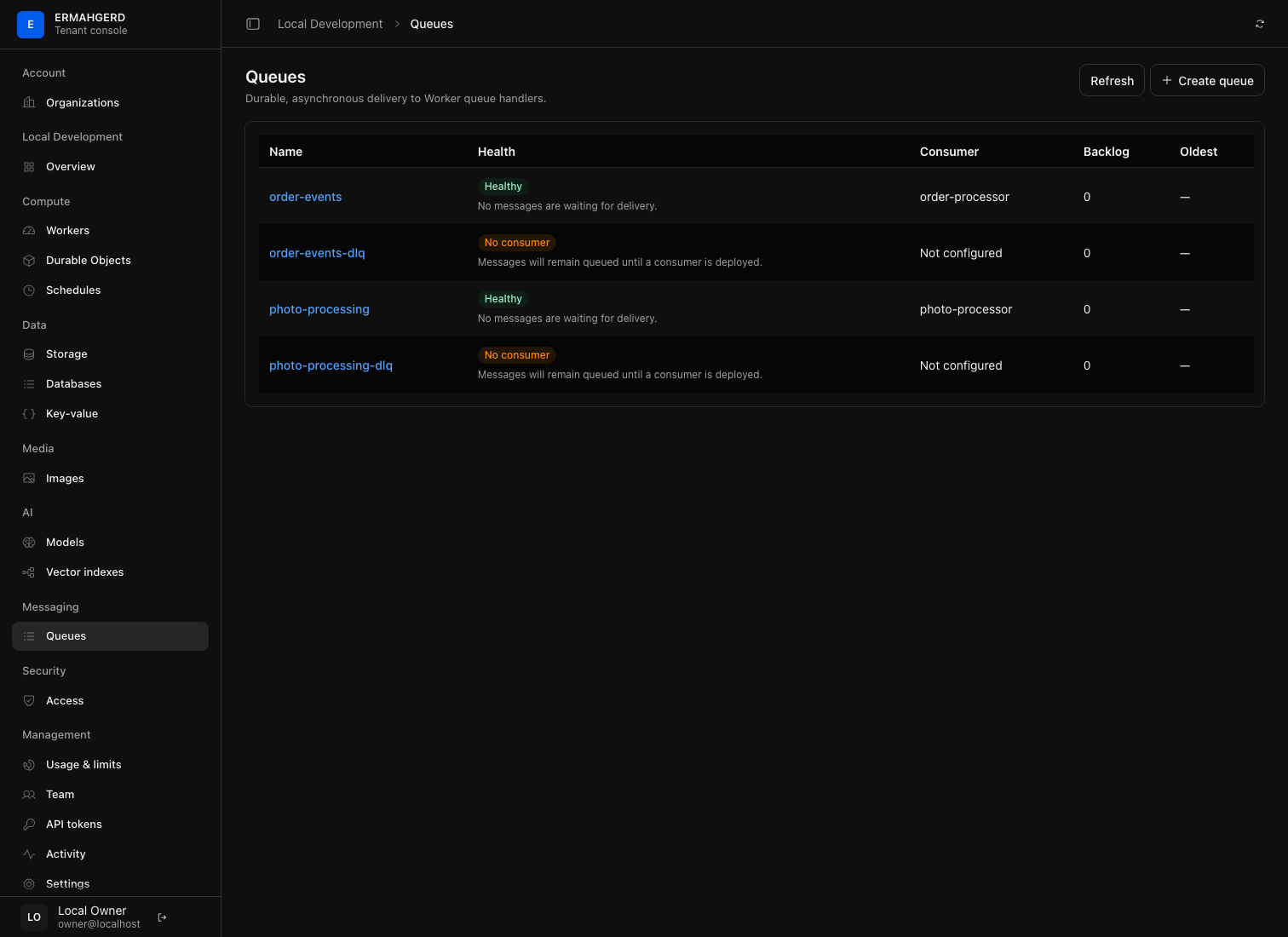
Queues makes delivery state visible to the organization that owns it. The detail view combines backlog and activity with consumer settings, pending messages, and durable delivery events. Pausing live updates freezes the view while investigating without changing queue processing.
Key-value provides tenant-scoped namespaces for small configuration and coordination values. The namespace page supports prefix browsing, UTF-8 value and JSON metadata inspection, expiration, activity history, and deliberate rename or deletion. Values remain subject to the service’s 64 KiB limit; use Storage for objects and large payloads.
AI → Models stores a connection to an organization-owned OpenAI, Anthropic,
or Fireworks account. The console never reveals a saved provider credential.
Workers use the native AI binding instead. Vector indexes creates and
inspects the indexes those Workers can bind through Wrangler. See AI and vector
search for the binding and supported provider calls.
Review usage and limits
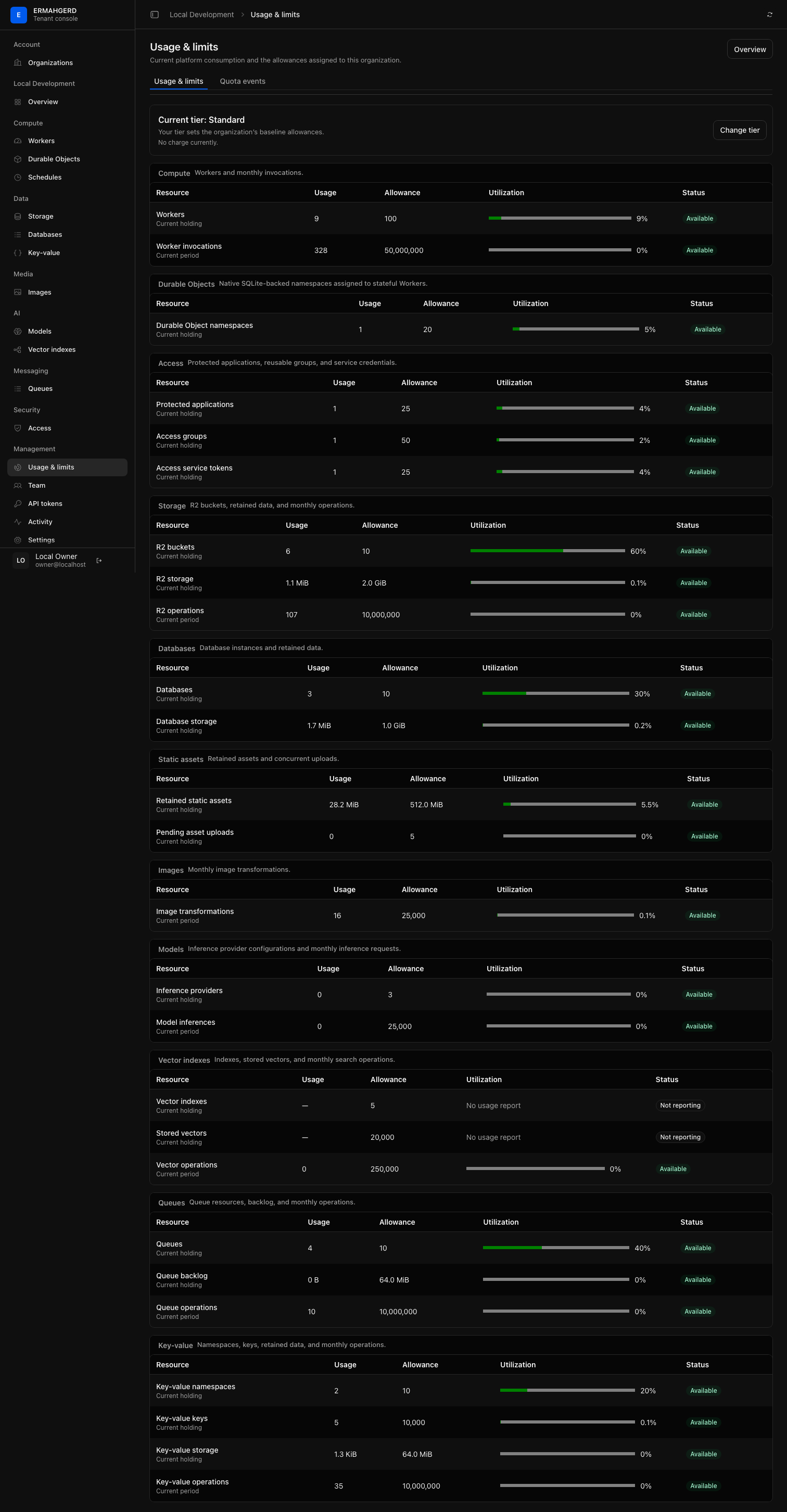
Management → Usage & limits groups allowances, authoritative usage, and enforcement state by service. Owners can change their usage tier; support can set explicit overrides. Usage and quotas explains the difference.
See Worker observability for focused traffic, background activity, and log investigations.